
Microsoft 365 and digital signage: Reuse your existing content
How to make company news, KPIs, files and room calendars visible on displays — in offices, in production and across multiple locations.
Company news is published in SharePoint, KPIs are available in Power BI, and the latest notices are stored in OneDrive. Yet this information does not reach every employee during the working day: people in production, warehouses or service roles often do not have their own PC. And even in the office, not everyone regularly opens every application.
Microsoft 365 and digital signage make existing company information visible on displays. connectSignage integrates suitable content from SharePoint, Power BI, OneDrive, Teams and Exchange. Depending on the source, content is provided as a web view, through synchronised files or via a data connection. This adds screen communication to your existing information channels.
1. What does connecting Microsoft 365 with digital signage mean?
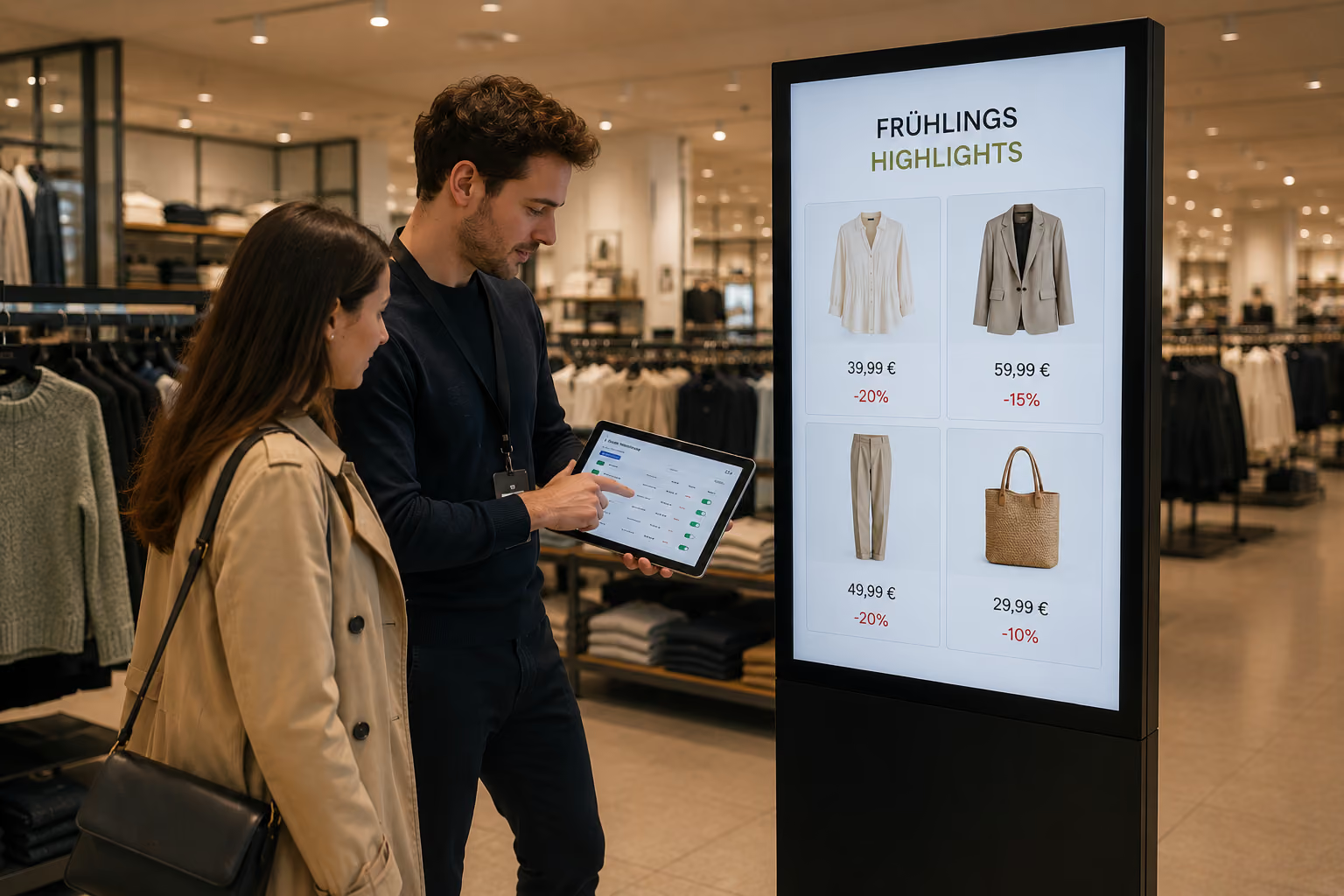
Connecting Microsoft 365 with digital signage means making content from your existing Microsoft environment available on information displays as an additional channel. Information continues to be maintained in the respective application. connectSignage handles central scheduling and playback on the appropriate screens.
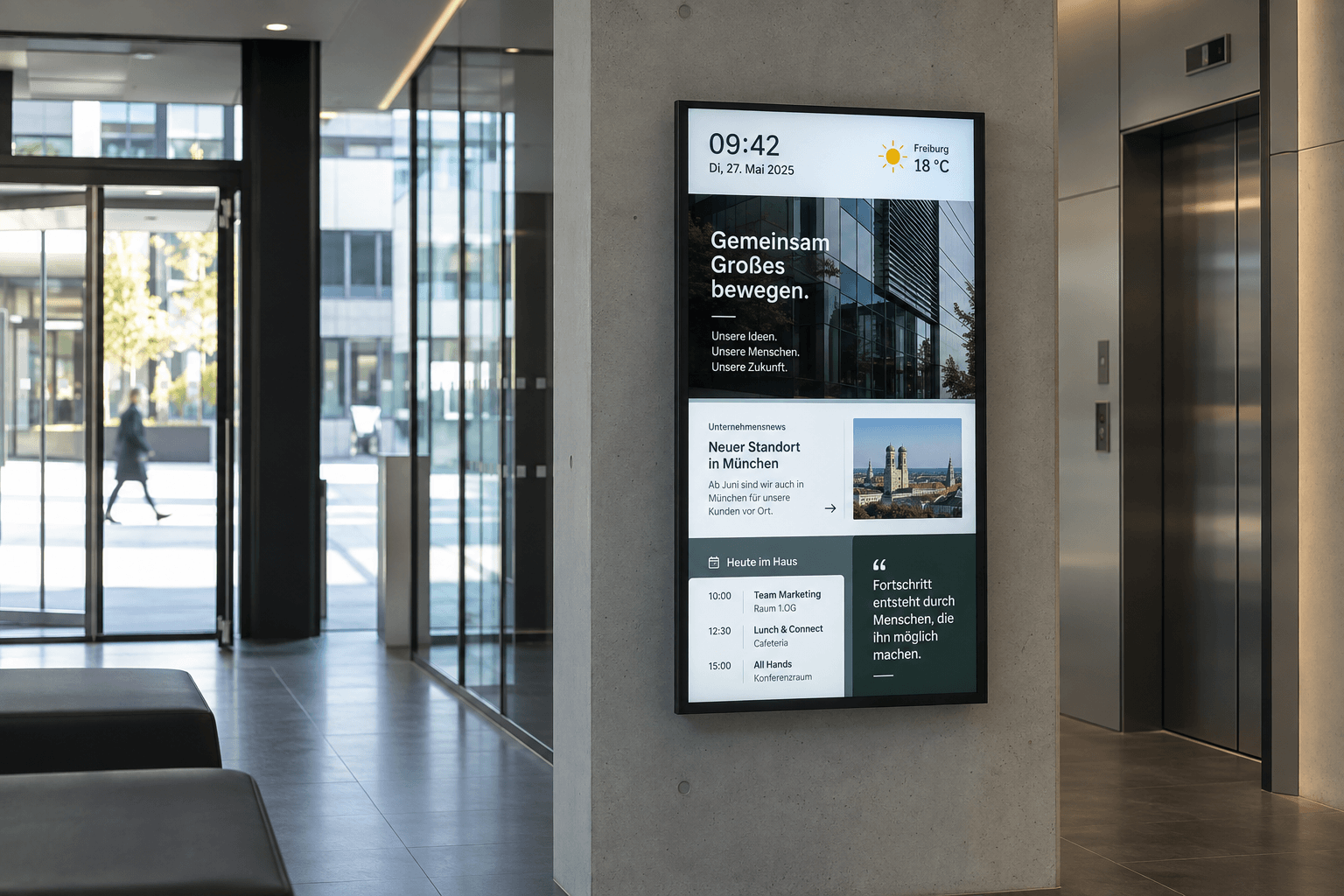
For example, a company announcement published in SharePoint also appears on the digital notice board in the break room. A production report from Power BI is shown on a factory floor display. An Exchange room calendar provides availability information for the display outside a meeting room.
The Microsoft 365 integration in connectSignage offers different connection options. The right choice depends on the information source, the intended presentation and your IT environment.
→ Explore the Microsoft 365 integration
2. Which Microsoft content is suitable for displays?
SharePoint: Company news and intranet content
SharePoint is suitable for internal announcements, location news, documents and shift information. On displays, this content also reaches employees who do not access the intranet themselves during their work.
With connectSignage, you can display complete SharePoint pages as a web application, synchronise selected files or bring structured content such as news, lists and metadata into your own layouts using Microsoft Graph or a project-specific connection. The right approach depends on whether you want to show an existing page or adapt individual pieces of information for the screen.
→ SharePoint on displays: Options and requirements
Power BI: KPIs directly in the workplace
Power BI reports can show production progress, stock levels or service KPIs, for example. A display in the relevant work area allows teams to follow the developments that matter to them together.
connectSignage can embed suitable Power BI views using their web address. This requires a suitable player, the necessary Microsoft licences and access permissions. Existing reports can be reused; however, for viewing from several metres away, a view with a small number of KPIs and sufficiently large text is recommended.
OneDrive: Make files available automatically
Images, PDFs, presentations and current notices are often already stored in OneDrive. With synchronisation configured, suitable files can be made available for your displays without manually uploading every change again.
In the integration approach described here, the OneDrive folder is synchronised locally on a Windows computer or server. The cosUploader monitors selected files or folders and transfers new or updated content to connectSignage. The Windows system must remain available for this process. Depending on the file format and intended presentation, conversion may be required.
→ Use OneDrive files for digital signage
Exchange and Outlook: Room availability outside the meeting room
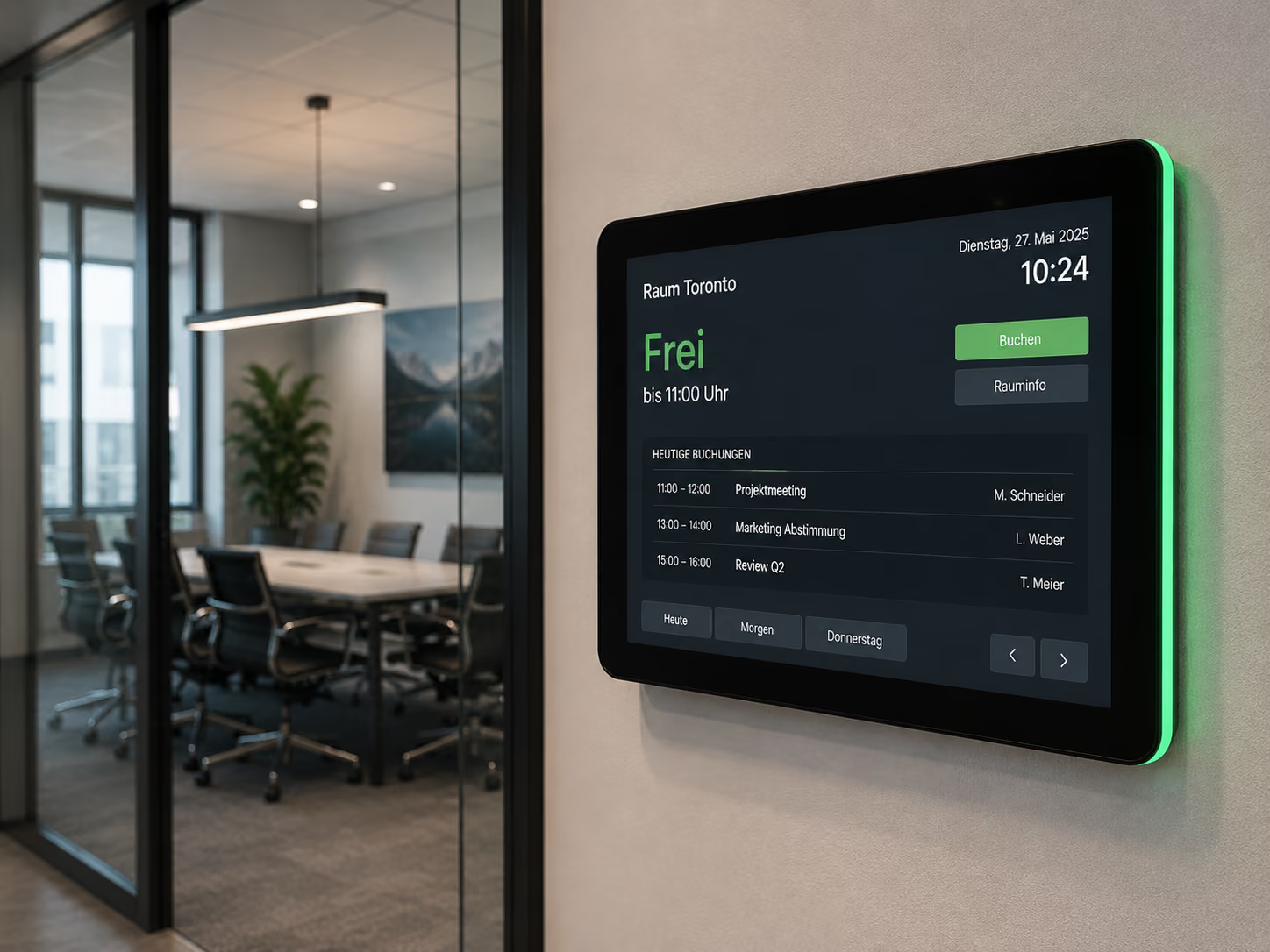
If you organise meeting rooms through Outlook, you can also use the associated Exchange room calendars for digital room signs and room overviews. Displays can show the current room status, meetings in progress and the next booking, for example.
For Exchange Online, connectSignage regularly reads the authorised room and event data through Microsoft Graph. The required Microsoft consent is granted during setup. Updates take place at regular intervals. Ad hoc bookings on the touch display are possible with suitable hardware and appropriately configured permissions.
→ Connect Exchange with room booking displays
Microsoft Teams: Use suitable information on displays
Suitable Microsoft Teams web content can also become part of your screen communication. Before implementation, define which information should appear on the display and which permissions are required. The specific content and technical environment determine how it is implemented.
→ Explore Microsoft Teams and digital signage
3. What does this look like in everyday work?
The following examples illustrate possible applications. In each case, the key question is which information an audience needs at a particular location.
- Production and logistics: A factory floor display shows selected Power BI KPIs. In the break room, company news from SharePoint and current notices from a synchronised folder provide additional information.
- Offices and administration: Information displays bring together location updates, event announcements and team KPIs. Smaller displays outside meeting rooms show room availability from Exchange.
- Reception: A welcome screen combines approved company information with visitor notices. Internal KPIs and confidential announcements remain on the displays designated for them.
For each location, you can define which content is relevant and when it should appear. This turns an existing information source into a suitable display for the people on site.
→ Read the practical guide: Internal communication with digital signage
4. Practical example: Room booking at GGM Gastro
GGM Gastro uses connectSignage on touch displays outside meeting rooms to show room status, current meetings and upcoming bookings. Employees can book available rooms directly on the display or continue using Microsoft 365 and Outlook.
The project demonstrates a practical benefit of the integration: an established calendar process becomes visible and accessible directly at the room.
→ GGM Gastro: Digital room booking in practice
5. How do you plan your Microsoft 365 connection?
Start with a specific information need. Once you have defined the audience, content and location, it becomes easier to select the appropriate technical connection.
- Define the audience and information: Which employees should see which announcement, KPI or schedule?
- Select the source: Is the content stored in SharePoint, Power BI, OneDrive or an Exchange room calendar? Who keeps it up to date there?
- Decide on the presentation: Do you want to show a complete web view, play a file or create a custom screen layout using individual data points?
- Check technology and access: Work with your IT team to clarify the player, Microsoft licences, required permissions and sign-in method.
- Test playback: Check readability, updates and sign-in on a suitable display. You can then plan deployment to additional locations.
6. What matters when it comes to updates and permissions?
There is no single update method for all Microsoft content. A web view, a synchronised file and calendar data retrieved at regular intervals behave differently. Define how current each piece of content needs to be, and check the entire path from the source to the display.
Protected web content requires suitable authentication. Depending on the service, player and IT environment, options may include Windows SSO, browser sessions or login macros. In the OneDrive synchronisation approach described here, files are accessed through the Windows system running cosUploader.
Also consider who can actually see the screen. Having authorised technical access does not mean that every piece of information is suitable for a publicly visible location. Select approved content that matches the audience and display location.
Conclusion: Use Microsoft content for screen communication
Microsoft 365 and digital signage connect existing information sources with the places where your teams work. The value comes from presenting relevant content clearly, distributing it appropriately and updating it reliably. Depending on the connection, content can continue to be maintained in the familiar Microsoft applications.
Would you like to bring SharePoint news, Power BI KPIs, OneDrive files or room calendars to your displays?
→ Book a meeting to discuss your Microsoft 365 connection
Frequently asked questions about Microsoft 365 and digital signage
1. Can I use Microsoft 365 for digital signage?
Yes. With connectSignage, you can use suitable content from Microsoft services on displays. Examples include SharePoint news, Power BI reports, OneDrive files and Exchange room calendars. Setup depends on the respective service and intended display.
2. Does content also need to be maintained in connectSignage?
With a suitable connection, existing content can be reused and changes can be carried over. The source continues to be maintained in SharePoint or OneDrive, for example. You configure the presentation, assignment and scheduling of display content in connectSignage.
3. Does the Microsoft 365 integration replace the intranet?
Digital signage complements the intranet by showing selected information on screens. This makes content visible in areas where employees do not use their own PC. Detailed information can remain available on the intranet.
4. Do changes appear immediately on every display?
This depends on the source and connection. Web views, file synchronisation and calendar queries use different update methods. Immediate transfer of all changes therefore cannot be guaranteed across the board.
5. Can I display protected Microsoft content?
Yes, provided the necessary access permissions, any required Microsoft licences and suitable authentication are in place. The appropriate solution must be checked for the service and player being used.
6. Does every display need a Microsoft sign-in?
This depends on the integration approach. Protected web views require a suitable sign-in. With the OneDrive connection via cosUploader, a Windows system accesses the files; Microsoft sign-in does not take place on every display.
Bereit für einfaches und leistungsstarkes Digital Signage?
Erlebe connectSignage live und entdecke, wie du digitale Displays, Inhalte und Standorte zentral steuerst und Digital Signage für deine Unternehmenskommunikation einsetzt.
Weitere Insights rund um Digital Signage
Entdecke weitere Artikel zu Digital Signage, interner Kommunikation, Integrationen und konkreten Anwendungsfällen.
.png)

.png)
.png)
.png)
.png)
.png)
.png)