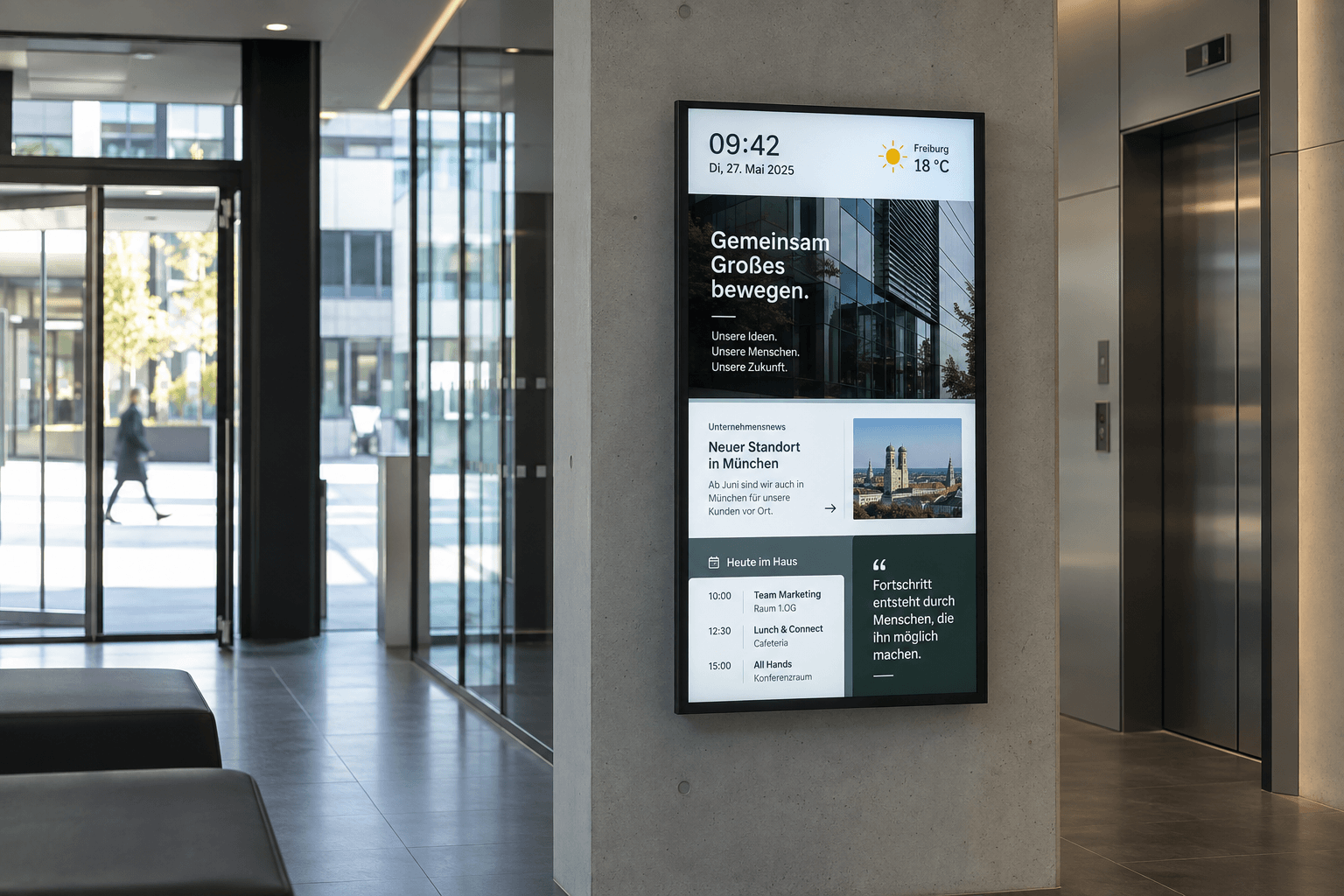

Company news is published in SharePoint, the cafeteria menu is stored as a PDF in a document library, and announcements are maintained on the intranet. How can this information also reach employees without their own PC? With connectSignage, you can show suitable SharePoint content on screens in production areas, offices or break rooms.
The right approach depends on what you want to show on the display: the original SharePoint page, a file or selected information in your own design. Here, you will learn how these three options differ and what they require.
What options are available for using SharePoint with connectSignage?
You can reuse existing content and continue maintaining it in SharePoint. In connectSignage, you define which displays show the prepared content and at what times. There are three integration approaches:
1. Show SharePoint pages as a web application
If you want to use the original SharePoint interface with its navigation, web display is the right approach. For example, you can show an existing intranet hub on a suitable display.
2. Synchronise files with cosUploader
Use file synchronisation for images, videos and documents. cosUploader imports new or changed files from the configured storage location, such as a regularly updated cafeteria menu as a PDF.
3. Present news and data in a custom layout
Microsoft Graph or a suitable API integration lets you bring selected information into custom connectSignage layouts. For example, news items can appear with a title, image and date in your corporate design.
Your information needs determine the choice. An updated PDF notice needs a different integration from an interactive intranet page or a news card with a custom design.
How can the original SharePoint interface be displayed?
If you want to use an existing SharePoint page with its navigation and features, connectSignage opens the configured URL directly on a suitable player. Once Microsoft sign-in is successful, the web page appears in the designated display area.
Protected content requires a suitable browser session and a Microsoft account with access to the relevant page. Depending on your environment, Windows single sign-on or a connectSignage login macro may be suitable. The sign-in method must comply with your Microsoft policies; Conditional Access and any multi-factor authentication requirements remain in effect.
Current Windows, Android and BrightSign players can be used for protected SharePoint web applications. On other platforms, suitability depends in particular on the browser environment and the supported sign-in method.
Why is a simple iframe not enough?
SharePoint Online restricts the embedding of complete pages in websites on another domain. A complete SharePoint page therefore cannot reliably be placed into content using a simple cross-domain iframe. To show the original interface, a suitable direct or native web display is configured on the player.
How can SharePoint files be updated automatically on displays?
If you want to show images, videos or documents, cosUploader can handle the transfer. It monitors the selected storage location and transfers new or changed files to connectSignage. This means you do not have to upload each change manually for your displays as well.
1. Set up access to the storage location
An always-available Windows computer or Windows server is given access to the SharePoint or OneDrive area, or to a suitably synchronised storage location. cosUploader runs on this system.
2. Select files or folders
You define which files or folders cosUploader should monitor. An appropriate transfer job is configured for this purpose.
3. Transfer changes
New or changed content is transferred automatically to connectSignage. The corresponding source is updated in the affected slides.
4. Make content available on the players
connectSignage distributes the updated content to the assigned players, where it is cached locally. Microsoft sign-in is handled by the Windows system with access to the storage location and does not need to be configured on every player.
Typical content includes images, videos and PDF files. Suitable Office documents can also be used; depending on the intended presentation, a defined export or conversion process is required.
For example, you could replace the cafeteria menu at the same path in the monitored storage location. After the configured synchronisation and distribution process, the updated file appears on the intended displays. How quickly this happens depends on the transfer process and configuration.
How can SharePoint news appear in your corporate design?
If you want to show news as custom cards with a headline, image and date, individual pieces of information are retrieved from SharePoint. Microsoft Graph or a supplied feed can be used to prepare this data and connect it to a connectSignage template. This lets you adapt fonts, colours and layout to your screen communication.
The first step is to define which sites, news items, lists or fields you need, how content should be filtered and how often it should be refreshed. Your Microsoft administrators approve the required access. Application permissions with administrator consent can be used for unattended retrieval.
The implementation depends on your data and the intended layout. Whether an existing integration already supports the required data object or a connector needs to be adapted is assessed for your use case. Additional fields, filters or specific page elements may require a project-specific implementation.
Alternatively, your IT team can supply the information as a feed or export, for example using Power Automate or existing middleware. connectSignage then receives the prepared content. Microsoft authentication for this retrieval remains within your own environment.
Which content is useful for businesses?
SharePoint content on displays is particularly useful when information needs to be visible beyond employees' own PCs. Depending on the area, the following content may be useful:
Company news
New projects, team achievements or company developments can appear on displays in offices and break rooms. A clear headline, an image and a short summary are often enough to give viewers a quick overview.
Internal announcements
Announcements about events, training or organisational changes can be shown alongside existing intranet posts. Choose information that is relevant to people at each location.
Documents and media
A cafeteria menu as a PDF, an updated notice or an information video can be provided through file synchronisation. Make sure text and graphics remain readable from the usual viewing distance.
Location-specific information
A production hall needs different information from an office corridor. With appropriate selection and assignment, shift information or announcements for individual sites can appear on the relevant displays.
→ Read the practical guide: Internal communication with digital signage
What are the key requirements?
Permissions and sign-in
Approved content and access rights must match the chosen integration approach. Browser sign-in for web display, file access for cosUploader and an API application are separate types of access. Registering an application for Microsoft Graph does not automatically sign a player in to the SharePoint web interface.
Players and supported presentation
The original web interface requires a suitable browser environment with working Microsoft sign-in. For synchronised files or prepared data, player selection depends on the supported media features and the template used.
Network and Windows system
The systems involved must be able to reach the required Microsoft services and connectSignage. cosUploader requires an always-available Windows computer or Windows server with access to the source. For web display, the player itself needs a connection to SharePoint and Microsoft's sign-in services.
Refresh and visibility
Agree on how up to date the content needs to be and who can see the displays. Technically authorised access does not mean every internal item should be visible at every location. Test presentation and refresh behaviour before deploying to more screens.
Frequently asked questions about SharePoint on screens
Are SharePoint files synchronised automatically?
With a configured cosUploader job, new or changed files can be transferred automatically to connectSignage. This requires an available Windows system with access to the monitored storage location. Refresh behaviour depends on the configured synchronisation and distribution process.
Can I show SharePoint news in my own design?
Yes. Selected information can be brought into a custom connectSignage layout through Microsoft Graph or a supplied feed. The available fields and news content, and how they are mapped, are defined during setup.
Does every display need a Microsoft sign-in?
For protected SharePoint web pages, the player needs a suitable browser sign-in. With file synchronisation, access is handled by the Windows system running cosUploader. In a server-side data integration, the configured application retrieves the information; the players do not need their own SharePoint sign-in for this.
Which content can be used?
Depending on the integration, complete web pages, images, videos, PDFs, suitable Office files or structured information such as news and list values can be used. The file format, data access and intended presentation determine the implementation.
What is the difference between web display and data integration?
Web display shows the original SharePoint interface with its navigation. A data integration retrieves selected information and presents it in a custom layout. The design of the original SharePoint page is not carried over automatically.
Can every SharePoint list be shown directly as a ready-made template?
Which content can be used directly depends on the existing integration. The required fields, permissions and mapping to the template are agreed for your list or news source. If the existing integration does not yet cover the requirements, it needs to be adapted.
Use SharePoint content for your screen communication
Whether you want to show a complete intranet page, an updated notice or news in your corporate design, the right integration approach lets you reuse existing SharePoint content for your displays. This also brings information to employees who do not open the intranet themselves during their working day.
→ Explore the SharePoint integration
More about setup
Bereit für einfaches und leistungsstarkes Digital Signage?
Erlebe connectSignage live und entdecke, wie du digitale Displays, Inhalte und Standorte zentral steuerst und Digital Signage für deine Unternehmenskommunikation einsetzt.
Weitere Insights rund um Digital Signage
Entdecke weitere Artikel zu Digital Signage, interner Kommunikation, Integrationen und konkreten Anwendungsfällen.
.png)

.png)
.png)
.png)
.png)
.png)
.png)