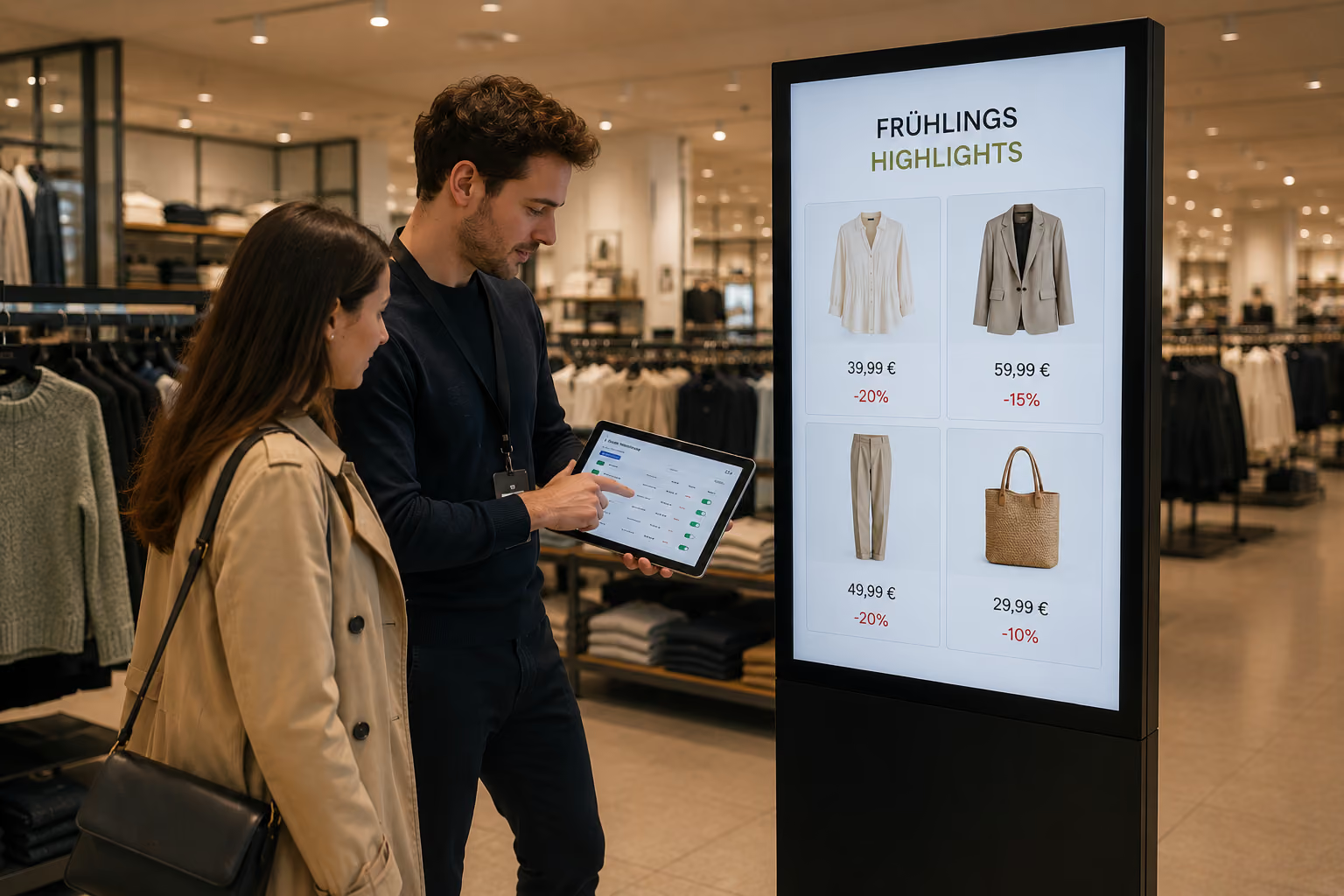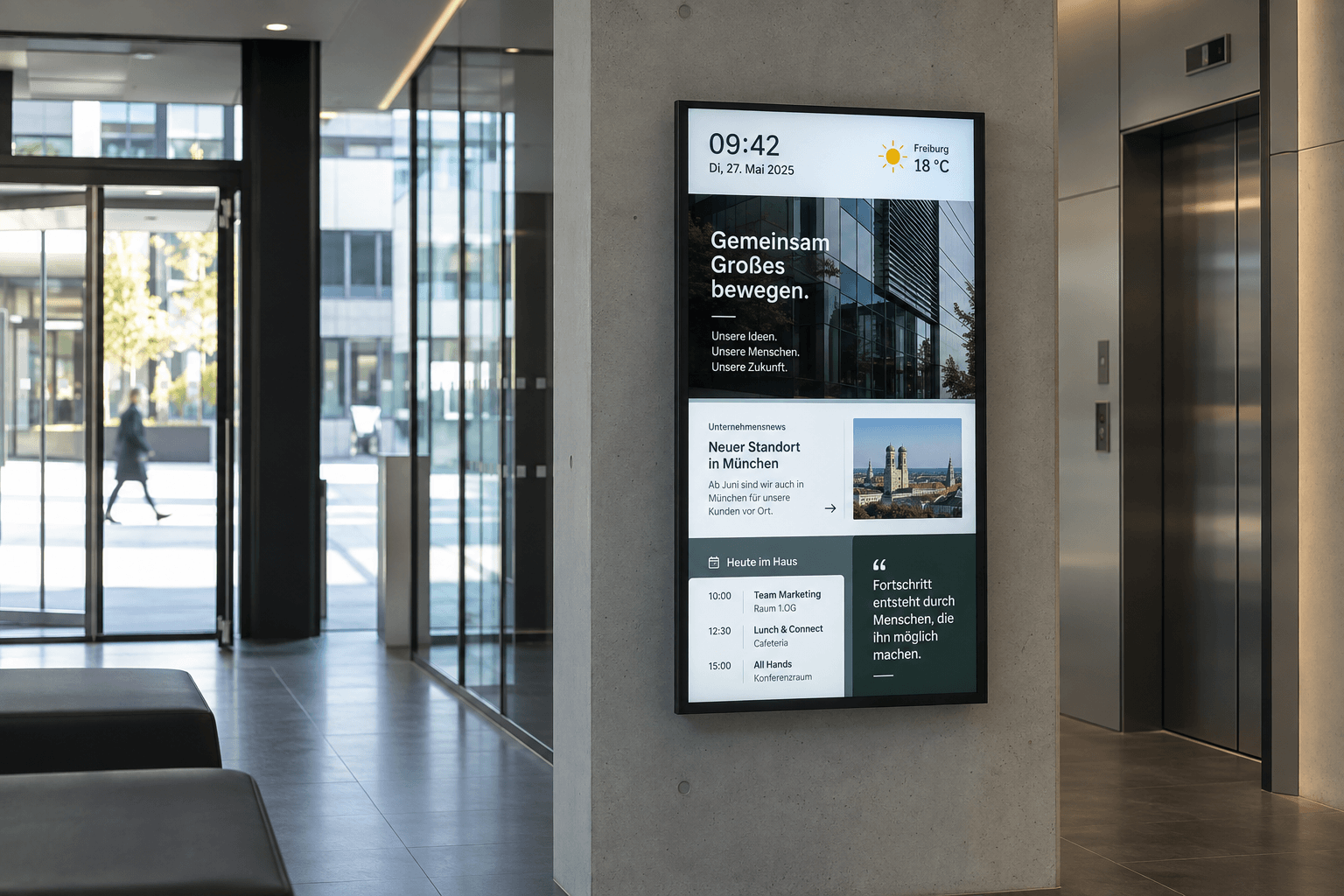

How can you show Power BI on screens and make your KPIs visible directly in the workplace? connectSignage can display suitable Power BI reports on screens using their web address. This requires a compatible player, the right Microsoft permissions and an appropriate sign-in method.
Whether you want to show production progress, sales targets or management KPIs, you can reuse existing reports and use connectSignage to schedule where and when they appear. Here, you will learn about the requirements and how to prepare the integration.
How can Power BI be shown on a display?
Power BI reports can be shown on suitable connectSignage players using a report URL or a secure embed URL. The player opens the web view and shows it on the connected display. A screen alone is not enough: the player, its browser environment and the appropriate sign-in method are what matter.
For protected reports, the Microsoft account being used needs access to the report. A secure embed URL does not grant permissions by itself. The data shown remains subject to Microsoft's access rules.
What are the benefits of Power BI on displays?
You can reuse existing reports instead of regularly creating screenshots or presentations for your screens. This also gives employees without their own PC access to relevant KPIs directly in their work area.
In connectSignage, you centrally define which displays show the reports and at what times. You can also schedule shift information, company news or announcements alongside them. This adds context to your KPIs.
Which players are suitable for Power BI?
For protected Power BI reports, connectSignage uses current Windows, Android and BrightSign players. These show the report's original web view. When the browser integration works correctly, page navigation, filters and other report features remain available.
In addition to the player model, the browser version and Microsoft sign-in method affect your choice. Automatic sign-in to protected Power BI web pages is not generally available on ChromeOS and other SoC systems. Android-based SoC devices may be suitable, depending on their specifications.
If you mainly want to show selected KPIs, a prepared export or feed can be an alternative. The integration is then configured to suit your project.
How does sign-in work?
For protected reports, the player needs a Microsoft sign-in with the appropriate access rights. Depending on your IT environment, there are two options.
Windows single sign-on
On a Windows device joined to Microsoft Entra or a domain, the Windows user's sign-in can be used. This user needs access to the required report. This is particularly suitable for centrally managed devices with a device and user identity configured by your IT team.
connectSignage login macro
A login macro performs the sign-in steps for a designated Microsoft account. The account must be approved for this use and have the required permissions. The sign-in process must work without an MFA prompt that regularly needs to be confirmed on site.
Your Microsoft security rules also apply when content is shown on displays. Conditional Access, for example, defines the conditions under which an account may sign in. Multi-factor authentication (MFA) may require additional confirmation. Whether your display can run without on-site intervention therefore depends on the configured sign-in method and your security policies.
When a custom embedded solution is needed
If Power BI needs to be embedded without a user signed in on the player, a project-specific Power BI Embedded application may be an option. This requires a custom web application with an application identity, an embed token and suitable Microsoft capacity. connectSignage then displays this application. This is a custom implementation and requires more than entering a report URL.
How do you integrate a Power BI report?
The integration starts with your chosen report and a suitable sign-in method. Follow these steps:
1. Confirm the player and access rights
Choose a suitable player and work with your IT team to determine which Microsoft account will be used to display the report. The account needs access to the report and the appropriate licence or equivalent coverage through your Microsoft capacity.
2. Provide the report URL
Use the Power BI report's URL or its secure embed URL. The report remains protected by Microsoft sign-in and the existing permissions.
3. Enter the URL in connectSignage
Configure the web address in connectSignage to display the report. The player opens the URL and connects directly to Power BI and Microsoft's sign-in services. The view appears in the designated area of your content.
4. Set up sign-in
Depending on your environment, use Windows single sign-on or a connectSignage login macro. Your IT team aligns the sign-in method with the applicable device and security policies.
5. Test the display in operation
Check the report page, filters, page navigation and readability on the intended player. Also check how the display behaves after a restart or a new Microsoft sign-in prompt.
For a wall-mounted display, a clear report page with a small number of KPIs, large labels, a reporting period and a data timestamp is recommended. This makes the most important information easy to read, even from a distance.
Are the KPIs refreshed automatically?
How up to date the information is depends on two processes: Power BI must make the new data available, and the open report view must show those changes.
In Power BI, the data source, connection type and configured refresh settings are among the factors that determine when new values become available.
On the display, what matters is when the report view is refreshed. A reloaded web page can only show the data that Power BI makes available at that time.
Monthly revenue figures may need different refresh intervals from production KPIs. Configure refreshes to suit your information needs and, where possible, show a data timestamp in the report. Embedding a report alone does not turn it into a real-time display.
Where is Power BI on displays useful?
Power BI on displays gives teams a shared overview of important KPIs. Depending on the team, the following information may be useful:
Production KPIs
A display in a production area could show the daily target, the number of units produced and the scrap rate. Including the reporting period and data timestamp helps put the results into context.
Sales dashboards
Monthly revenue, target achievement and pipeline figures can give the sales team a shared view of progress. A team display could compare selected KPIs for this purpose.
Logistics
Stock levels or production progress could appear on a display on the shop floor, providing a shared overview.
Customer service and IT
Ticket volumes, processing times and system availability can help teams assess their current workload and operating situation.
Management KPIs
Results across multiple sites or company KPIs, for example, can be summarised for internal meeting areas.
What matters is which information each team needs and who can see the display. Choose content and permissions to suit the location.
What limitations should you consider?
Microsoft licences and permissions
Power BI or Fabric licensing requirements continue to apply when reports are shown on displays. The account used needs the required permissions. A secure embed URL does not grant access by itself.
Row-level security
Row-level security can restrict which data rows the signed-in account can see, for example for specific sites or departments. These rules remain in effect when content is shown on a display. Everyone in front of the screen can see the values displayed there.
Browser and network
The player needs access to Power BI and Microsoft's sign-in services. The browser version, cookies, pop-ups and customer-specific policies can affect whether display and sign-in work.
Signing in again
Even secure embedding can trigger new sign-in prompts. Whether these can be handled automatically or require someone to intervene depends on your Microsoft environment.
Frequently asked questions about Power BI on screens
Can protected Power BI dashboards also be displayed?
Yes, protected Power BI content can appear on displays with the appropriate access rights, licences and a suitable sign-in method. The approach described here uses the URL of a Power BI report or its secure embed URL.
Which players are suitable?
Current Windows, Android and BrightSign players are used for protected Power BI reports. On other platforms, suitability depends in particular on the supported Microsoft sign-in method. Working with your IT team helps identify the right solution for your devices.
Is sign-in without interaction possible?
Depending on the IT environment, Windows single sign-on or a connectSignage login macro may be suitable. Conditional Access and MFA remain in effect. Permanently unattended sign-in therefore cannot be guaranteed for every environment.
Which report licences are required?
The requirements depend on the report, the account used and the Power BI or Fabric capacity. Work with your Microsoft administrators to confirm which licence or capacity covers access. The account also needs the appropriate permissions.
Do reports need to be recreated for displays?
You can reuse existing reports. However, adjusting font sizes and the layout is worthwhile when reports will be viewed from a greater distance.
How often are the KPIs refreshed?
This depends on the data refresh in Power BI and the refresh behaviour of the report view being displayed. Check both processes together. Integration with connectSignage alone does not guarantee real-time data.
Use Power BI for your screen communication
With a suitable player, the appropriate Microsoft permissions and a tested sign-in method, you can use existing Power BI reports on displays. This makes relevant KPIs visible to teams who do not open the report on their own PC.
→ Explore the Power BI integration
More about setup
You can find the technical background on displaying web content and the sign-in options in our knowledge base.
Bereit für einfaches und leistungsstarkes Digital Signage?
Erlebe connectSignage live und entdecke, wie du digitale Displays, Inhalte und Standorte zentral steuerst und Digital Signage für deine Unternehmenskommunikation einsetzt.
Weitere Insights rund um Digital Signage
Entdecke weitere Artikel zu Digital Signage, interner Kommunikation, Integrationen und konkreten Anwendungsfällen.
.png)

.png)
.png)
.png)
.png)
.png)
.png)