.png)
connectSignage is hardware-agnostic digital signage software: You can use a variety of supported player and display platforms, meaning you aren't tied to a single display manufacturer when selecting hardware. This includes Windows, Android, Samsung Tizen, LG webOS, Sony BRAVIA, and BrightSign, among others. Whether a device is suitable for your project depends on the specific model, the operating system, and the features you require.
This is helpful, for example, if you want to integrate existing screens, equip new locations, or manage different sites via a single CMS. When making your selection, it is worth looking at the entire combination of software, player, and display.
What does hardware-agnostic digital signage software mean?
Hardware-agnosticism means that software can be used across multiple supported hardware platforms. A company does not have to choose devices from a single display manufacturer for every location.
Content is created, scheduled, and assigned to the intended players centrally within the CMS. Which device then plays the content depends on the technical equipment at the location.
However, hardware-agnosticism does not mean universal compatibility. A supported operating system does not automatically mean that every device or every feature is available. Even within a model series, software versions and hardware specifications can make a difference.
Which platforms does connectSignage support?
The player matrix helps you choose the right combination of device and features:
Windows and Android players
Windows systems and Android devices can be used as playback units. The specific hardware, operating system version, and the requirements of your content are the deciding factors. Individual features may be limited on devices that have not been tested.
Samsung Tizen and LG webOS
For selected professional Samsung and LG devices, connectSignage supports the integrated Tizen and webOS platforms respectively. The matrix lists the relevant models and operating system versions. Therefore, support cannot be applied generally to all Samsung or LG screens.
Sony BRAVIA
Selected Sony BRAVIA devices can also be used with their integrated system. The matrix lists the BRAVIA BZ series and model-specific details. Before deployment, the desired resolution, interaction, and other functions should be checked against the specific device.
BrightSign
There are various BrightSign player series to choose from. These differ in terms of resolution, device generation, and output options, among other things. The right choice depends on your content and the specifications for the respective model.
→ Compare supported models and features in the player matrix
Integrated player or external media player?
A player processes content from the CMS and displays it on the screen. It can be built directly into the display or connected as a separate device.
Integrated player: Using the system within the display
With an integrated player, you use the display's own processing unit and operating system. This is often referred to as System-on-Chip, or SoC for short. There is no need for an additional player box. Whether this solution is suitable depends on whether the display model and the required features are supported.
External player: Choosing playback device and screen separately
An external media player is connected to the display via a suitable video input. This allows you to select the screen and the playback device separately or replace them individually if necessary. You will need space, a power supply, and the appropriate connections for the additional device.
The use case determines which option makes sense. An information display with limited media content may have different requirements to an interactive kiosk running secure web applications. An external solution is not automatically required for every task; conversely, an integrated system does not cover every requirement.
What are the benefits of flexible hardware selection?
Selecting devices to suit the location
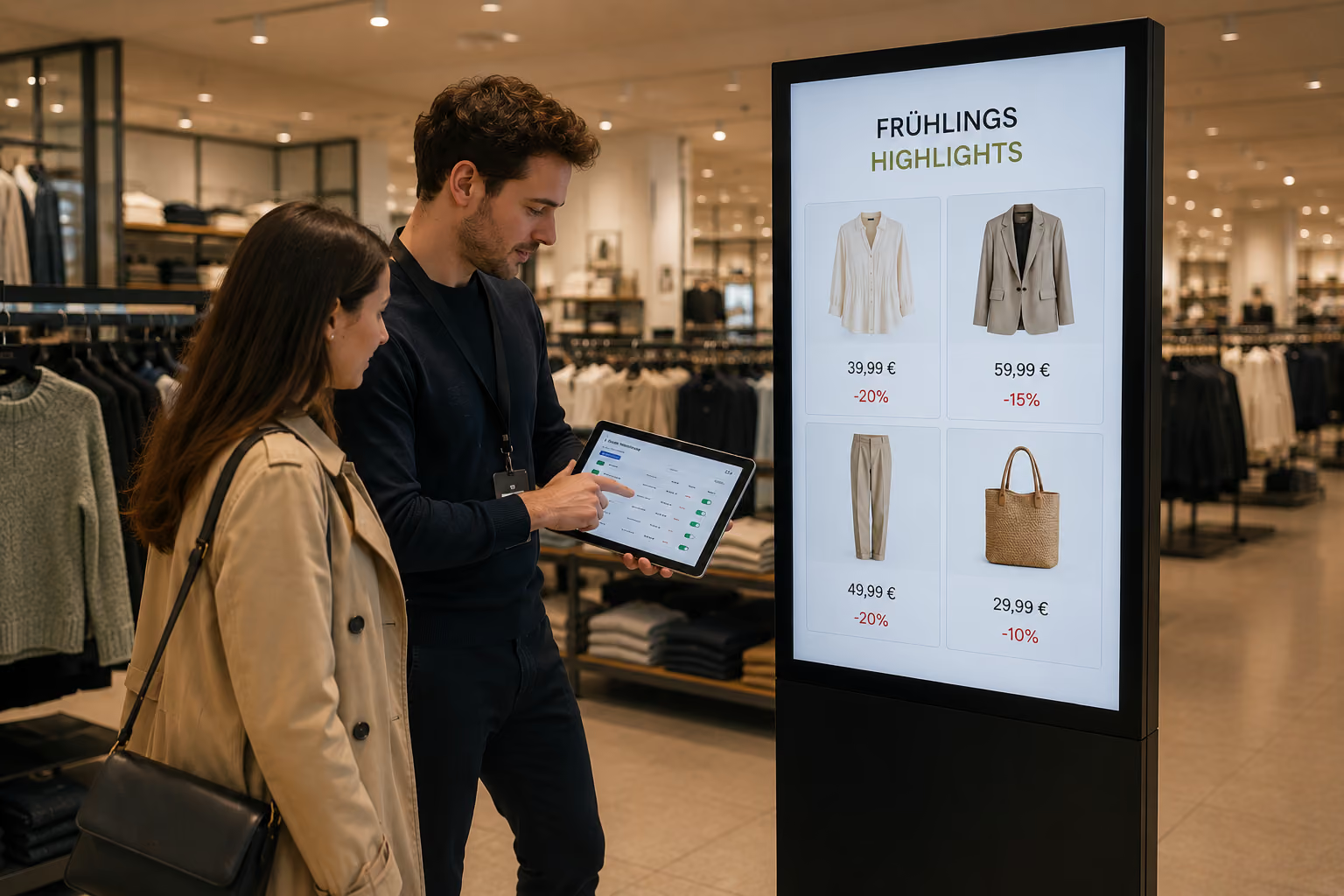
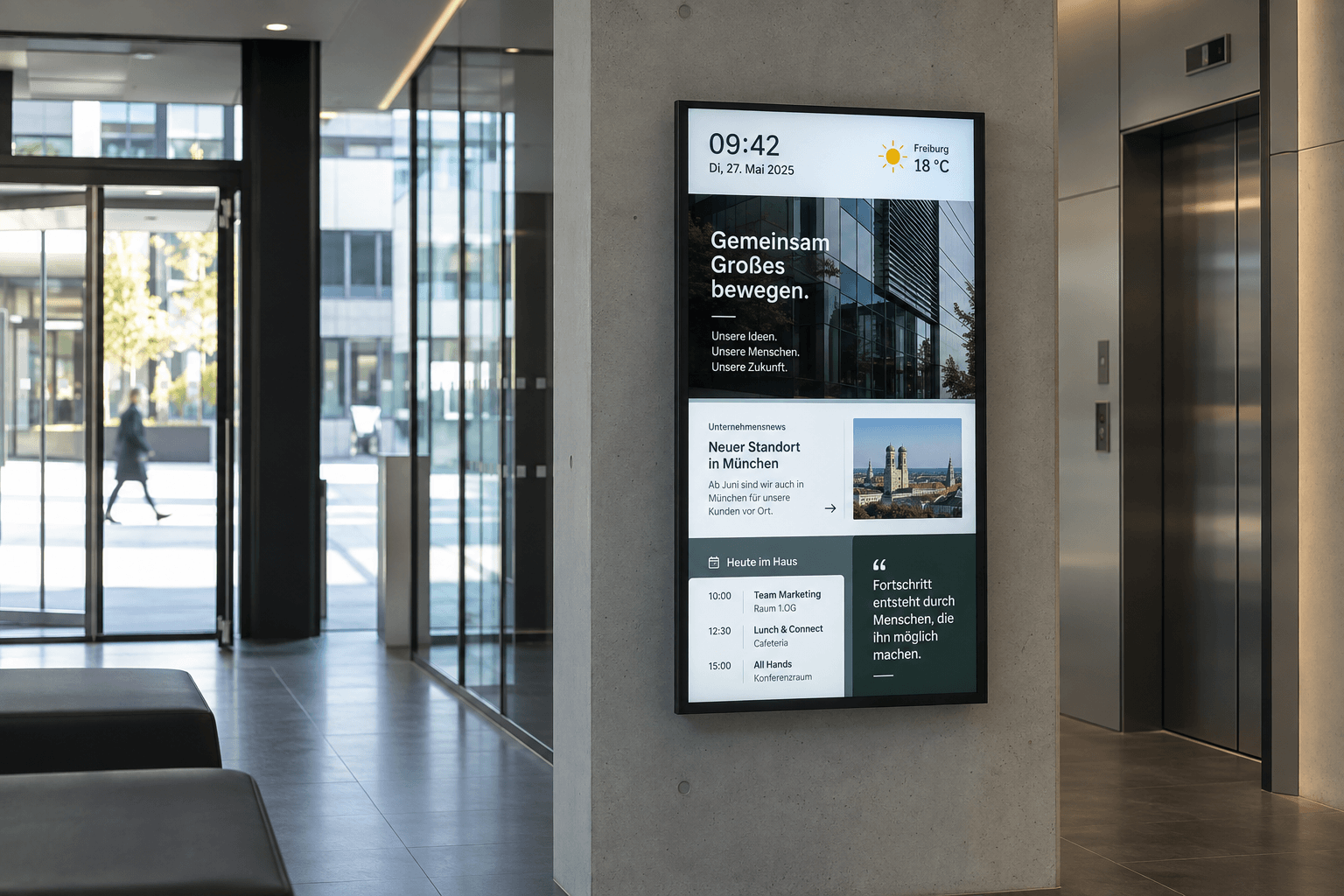
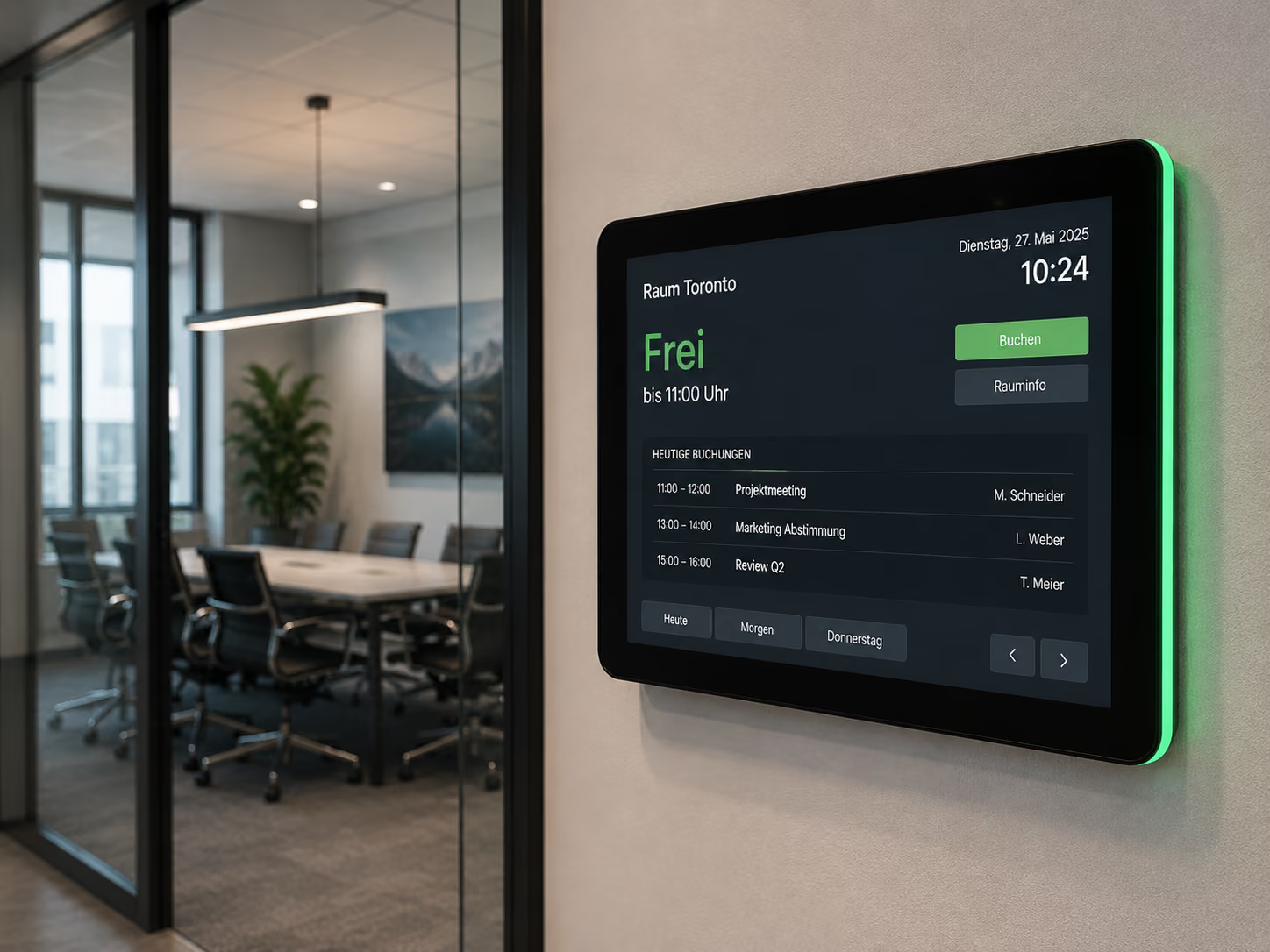
A reception display, a production floor monitor, and a touch terminal are all used differently. With cross-platform software, you can select devices based on the requirements of each specific location and manage them via a single, shared CMS.
Taking existing equipment into account
Compatible displays and players can often continue to be used. This can reduce the scope of any replacement. Whether a device is still suitable is assessed based on its connections, operating system, and intended use.
Planning expansions more flexibly
If additional locations or new applications are added later, you can review further supported hardware options. Software selection and the replacement of individual devices can thus be considered separately. New hardware must still be compatible with the required features.
A possible scenario: A company uses a compatible SoC display at reception and an external player for a more demanding application in production. Both locations are managed in connectSignage. Which devices are suitable for this depends on the respective content.
Can existing displays continue to be used?
This is possible if either the display's integrated platform is supported or a suitable external player can be connected. A display without a compatible internal system does not necessarily have to be replaced.
Check the model name, operating system, and available inputs. For external playback, the player, connection, and screen must all support the desired resolution. For touch applications, the connection for inputs is also important. The condition and suitability of the display for the planned daily operation are also factors.
An existing HDMI input, for example, can form the basis for external playback. However, it does not in itself guarantee that the entire application, including interaction and device control, will function as intended.
Why do features vary depending on the player?
Players differ in terms of processing power, operating system, browser, and device interfaces. Consequently, centralised management within the CMS can result in varying capabilities for playback and remote control.
The player matrix distinguishes between features such as touch support, screen resolution, native web display, remote configuration, and software updates. Individual models are certified for selected devices; for other platforms, only parts of the range have been tested. Approval should therefore be based on the specific device and the required functionality.
Media playback is not the same as a Microsoft login
Just because a player can play images or videos does not automatically mean it can open a protected SharePoint page or a Power BI report. To do this, it also requires a suitable browser environment, the correct Microsoft login, and the necessary permissions. Conditional Access and any potential MFA prompts remain in effect.
Suitable Windows, Android, and BrightSign players can be used for protected SharePoint pages and Power BI reports. On appropriately configured Windows devices, login can be handled via single sign-on. Alternatively, a connectSignage login macro can be used, provided your Microsoft policies permit this authentication method.
→ Displaying Power BI on screens: Requirements and integration
How do you choose the right player?
Start with the application and then compare your requirements with the current player matrix. These six points will help you with your selection:
1. Display model and operating system
Note the full model name, the operating system, and the software version. Check the entry for this device as well as its certification status.
2. Desired content
Determine whether images, videos, websites, or data from corporate systems should be displayed. Also consider multiple content areas visible at the same time and the required update frequency.
3. Required interaction
For touch navigation, the display, input technology, player, and application must all work together. Test the operation using the actual content.
4. Resolution and performance
Check the output resolution, the number of displays, and the performance requirements of your media. A resolution specification on the display does not replace the need to check the player.
5. Network and security
You should clarify network access, required target systems, certificates, and the login method for protected content. Also test how your application behaves in the event of a connection loss.
6. Required connectSignage features
Compare the desired features for playback, touch, screenshots, remote configuration and updates with the corresponding matrix entry. Testing with your planned combination helps to identify any limitations before rollout.
→ To the detailed guide: Which player do I need?
Frequently asked questions about hardware-agnostic digital signage software
Am I tied to a specific display manufacturer with connectSignage?
connectSignage supports multiple hardware platforms, allowing you to choose from a variety of suitable devices. The specific model, operating system version and required features are the deciding factors.
Can I continue to use all my existing screens?
There is no one-size-fits-all answer. You need a compatible integrated platform or a suitable connection to an external player. Resolution, ports and, where applicable, touch support must be suitable for your application.
Do I need an additional player box if I have an integrated player?
If the integrated platform meets all requirements, no additional external player box is needed for playback. Checking the player matrix will show you if this is the case for your display.
Can an external player be used with an older display?
This can work, provided the screen has a suitable input and supports the desired display output. The specific connection, resolution and other features must be checked together.
Can different operating systems be used within one project?
Different supported player platforms can be managed via connectSignage. Available features may vary between devices, so please plan your content and operation to suit each specific platform.
Does connectSignage work on every Samsung, LG or Android device?
A manufacturer or operating system name is not enough to guarantee this. Always check the model, software version, certification status and desired features against the current player matrix.
Matching software and hardware
Hardware-agnostic digital signage software gives you more choice when planning your equipment. The real benefit comes when the hardware matches the content and the desired feature is supported on the respective player. With connectSignage, you can centrally manage a variety of suitable devices and add new locations according to their specific requirements.
→ Discover the connectSignage platform
Further information
→ Current player decision matrix
→ Microsoft web applications: login and platform limitations
Bereit für einfaches und leistungsstarkes Digital Signage?
Erlebe connectSignage live und entdecke, wie du digitale Displays, Inhalte und Standorte zentral steuerst und Digital Signage für deine Unternehmenskommunikation einsetzt.
Weitere Insights rund um Digital Signage
Entdecke weitere Artikel zu Digital Signage, interner Kommunikation, Integrationen und konkreten Anwendungsfällen.
.png)

.png)
.png)
.png)
.png)
.png)
.png)